

Chromebook LCD Cable&Hinge
Your Leading Chromebook LCD Cable & Hinge Supplier in China!
We mainly focus on producing full series of Chromebook parts, such as such as LCD display, LCD digitizer assembly, bezels, base covers, keyboards & palmrests, batteries, adapters and so on. If you don’t get what you need on our website, don’t hesitate to contact us and our production team will get it for you in 24h.
Quality Oriented
We have stringent quality control standards and have the capability to test most of the screens that we sell in addition to vendor testing of the screens we receive.
Advanced Equipment
We have 15 production lines with world advanced level and have introduced advanced technical equipment such as laminating machines, separators, and defoaming machines.
Repair Guides
We offer thousands of free repair guides for thousands of different devices. They combine high-resolution photos with detailed, step-by-step instructions, and they’re vetted by our team of experts.
Professional Service
With professional purchasing team, QC team, logistic team, production team, sales team, after-sales team and technology team, we are confident that we can conduct long-term business cooperation with you and jointly develop the global repair market.


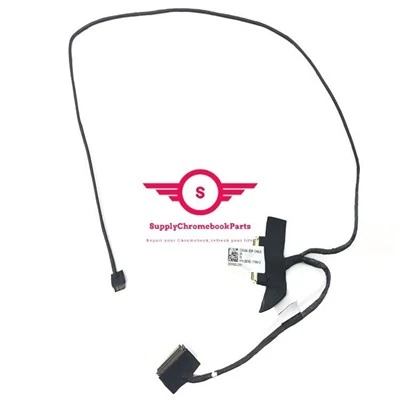
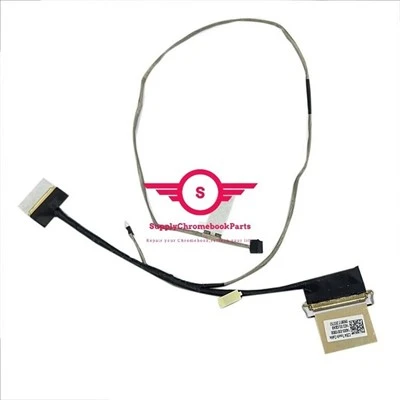
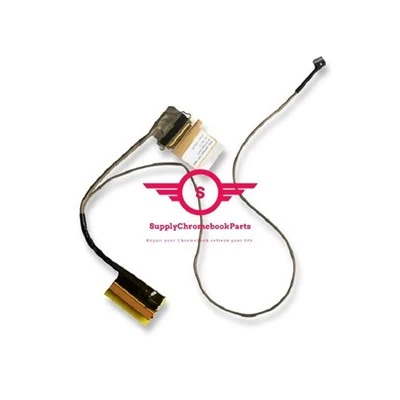
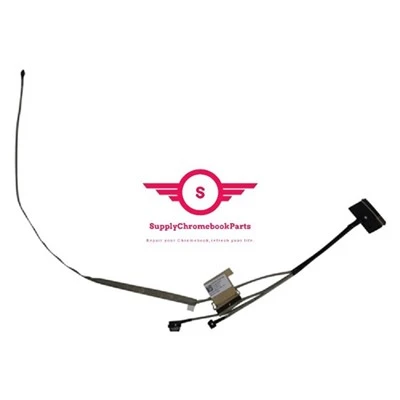


The Chromebook LCD cable, also known as the display cable, is a component responsible for transmitting video signals from the motherboard to the laptop's LCD screen. It is a thin, flexible cable that connects the display panel to the motherboard or graphics card. The LCD cable consists of multiple wires that carry the video data and power necessary to display images and colors on the screen. The cable's main purpose is to ensure a proper and reliable connection between the motherboard and the display, allowing the laptop to present visuals accurately. If the LCD cable becomes damaged or faulty, it can result in display issues such as flickering, lines on the screen, or a complete loss of image. In such cases, the cable may need to be replaced to restore the laptop's visual functionality.
The Chromebook hinge refers to the mechanism that allows the laptop's screen to open and close smoothly. It is a crucial component that connects the screen to the base of the Chromebook, enabling the user to adjust the angle of the display according to their preferred viewing position. Chromebook hinges are typically designed to be sturdy and durable, as they endure frequent opening and closing movements. They are engineered to provide flexibility and resistance to hold the screen in place at different angles, ensuring that it remains stable while in use. It's worth noting that different Chromebook models may have variations in hinge design, but the general concept and purpose remain the same. A well-functioning hinge is essential for the overall usability and longevity of a Chromebook, as it contributes to a smooth and reliable opening and closing experience.
Types of Chromebook LCD Cable
Chromebooks aren’t like other laptops. The Chromebook was designed to be easy to use, starts in seconds and has nearly everything built-in. On almost every front, the Chromebook is great, but there are many scenarios where an adapter must be added for the Chromebook to meet your needs.
Docking Station Bundle
Connects to your Chromebook with the USB-C 3-in-1 Mini Docking Station bundle that includes the cable connectivity solution needed for HDMI® displays. This docking station will transform your laptop into a full desktop solution through a single connection point, whether you’re in the office or working from home.
USB-C Video Cables
Using a video cable is the easiest way to accessorize your Chromebook. Using a USB-C to HDMI® cable to connect from the video output of the Chromebook to the input of a display allows you to share audio/video content-such as a streaming video, picture, or presentation.
USB-C Video Adapters
Using a video adapter allows you to connect the USB-C output of your Chromebook to the HDMI, DisplayPort, VGA or DVI input of a computer monitor or TV. Making this connection allows you to share audio/video content-such as a streaming video, picture, or presentation.
Wired Network
Adding a USB-C to Ethernet adapter allows you to add wired network connectivity to your Chromebook. This is ideal for connecting to networks where Wi-Fi® is unavailable or for Chromebooks that do not provide a wired Ethernet port or possibly have a damaged Ethernet port.
USB Connections
Expand USB capabilities by providing additional ports to add peripherals, such as keyboards, mice, flash drives, etc. Using a USB hub allows you to expand your Chromebook. And by making this connection, you can connect and use all your USB devices when you want.
Common Types of Chromebook Laptop Hinges

Barrel Hinge
This hinge consists of two cylindrical sections rotating together. It offers good stability but may limit the screen angle adjustment.

Piano Hinge
These are also called continuous hinges. This type runs along the entire laptop length. It provides a sturdy and even pivot point, allowing for a wide range of screen positions.

Butterfly Hinge
Butterfly hinges are found in ultra-thin laptops. They allow for a smooth and stable opening and closing motion.

Detachable Hinge
Some laptops feature detachable hinges that separate the screen from the keyboard base, transforming the device into a tablet.
Materials Used in Chromebook Laptop Hinge
Plastic Laptop Hinges
Plastic hinges are commonly used in budget laptops due to their low cost. They are lightweight and easy to manufacture, making them a popular choice for manufacturers. However, plastic hinges are not as durable as other materials and may wear out or break over time. They also may not provide as much stability for the screen, which can lead to wobbling or shaking during use. Overall, plastic hinges are a good option for those on a tight budget, but may not be the best choice for those looking for a long-lasting and sturdy laptop.
Metal Laptop Hinge Materials
Metal hinges are a popular choice for high-end laptops due to their durability and strength. They provide a sturdy base for the screen and are less likely to wear out or break over time. However, metal hinges can add weight to the laptop and may be more expensive to manufacture. They also may not provide as much flexibility as other materials, which can make it difficult to adjust the screen angle. Overall, metal hinges are a good option for those looking for a long-lasting and sturdy laptop, but may not be the best choice for those looking for a lightweight and flexible option.
Carbon Fiber Laptop Hinge Materials
Carbon fiber hinges are a newer option in the laptop market and offer several advantages. They are lightweight, which can make the laptop easier to carry around. They also provide flexibility, allowing for a wider range of screen angles. However, carbon fiber hinges may not be as durable as metal hinges and may wear out or break over time. They may also be more expensive to manufacture, which can drive up the cost of the laptop. Overall, carbon fiber hinges are a good option for those looking for a lightweight and flexible laptop, but may not be the best choice for those looking for a long-lasting and sturdy option.
3 Common Causes for Chromebook Laptop Hinge Broken
Damaged Laptop
If you ever accidentally dropped the laptop or smashed it to a hard surface, it usually affects the hinges and might even break them. It can also be due to mishandling the laptop. No matter how strong the company claims the laptops are, you have to be careful with the hardware.
Too Much Dust
Have you experienced super tight laptop flaps lately? That’s probably because of the dust clogging making the hinges tight. The dust particles obstruct smooth movements.
Excess of Heat
If your laptop usage is heavier than usual and you spend most of your time on the laptop accessing heavy tasks like animating or video gaming, this might be the cause for damaged laptop hinges. When the laptop throws out an excessive amount of heat, the plastic cover surrounding the hinges may start melting and ultimately damaging the hinges.
Step-by-Step Guide to Repairing Chromebook Laptop Hinges
Gentle Open & Close
Treat your laptop with care when opening and closing it. Avoid abrupt movements that strain the hinges.
Dual-Hand Approach
Support both the base and lid while opening/closing your laptop. It distributes pressure evenly.
No Slamming
Shutting your laptop too forcefully can harm the hinges. Close it gently to protect them.
Steady Surfaces
Always place your laptop on stable surfaces. Unstable or soft surfaces can strain hinges.
Clean Hinges
Dust & debris can affect hinge function. Regularly clean to ensure smooth movement.
Flat Position
Use your laptop on flat surfaces to prevent uneven stress on hinges.
Bag Handling
Avoid tossing your laptop bag with the device inside. It could damage the hinges.
Maintenance Checks
Regular servicing helps catch and address hinge-related issues early on.
Factory Workshop
Our team of experts is always ready to assist you with any questions or concerns you may have.


Frequently Asked Questions
Q: How to prevent laptop hinges from breaking?
Close your laptop properly: If you too take your laptop to school or college, you would have also noticed that a lot of students carry their laptop in a hurry. Sometimes, they leave stuff in between their screen and keyboard and put down the lid. This is one of the most common reasons so as to why a laptop hinge breaks. Laptop are quite delicate and therefore it is not at all a good idea to close the lid in a hurry.
Avoid improper carrying: One of the biggest reasons so as to why people end up in damaging or breaking their laptop hinges is improper carrying. If your work requires moving all the time, then you need to shut down your laptop lid properly put it down in the bag and then rush to the place. When people carry their laptops while holding the screen, when it puts a lot of stress on the hinges which causes it to break down. Always make sure that you get your laptop hinge repair done so that other vital components of the laptop doesn't get exposed to the environment.
Q: How to fix a broken laptop hinge?
Q: How To Check If Your Laptop Hinge Is Loose?
Open and close your laptop 2 to 3 times and notice if the hinges feel sturdy and tight. The screen of course shouldn’t feel hard to move but it shouldn’t be moving too freely either.
Do not open the lid to its full capacity instead leave it halfway between. If the lid stays as it is and doesn’t move downwards, the hinges of your laptop are fine.
Hold the bottom of the laptop, near its outer edge from both hands and walk a few steps. If the screen moves a lot, the hinges are definitely loose.
Q: What are the different monitor cable types?
HDMI: A mainstream audio and video transmission cable that’s been predominantly used on consumer TVs and monitors, games consoles, DVD and Blu-Ray players for well over a decade. In some rare cases it’s available in mini form.
DisplayPort: Another audio and video transmission cable that is more commonly found on desktop monitors. DisplayPort cables have traditionally offered greater bandwidth than HDMI, though that’s not always the case. You’ll also find the Mini DisplayPort cable type, which is a miniature version of the full-size port commonly found on laptops.
DVI: A video only cable type that is typically found on older monitors, desktop graphics cards, and laptops. Commonly found in DVI-D and DVI-I formats, it was also available as Mini-DVI and Micro-DVI for a time.
VGA: An older analog standard of video-only cable that gained prominence in the early ‘90s. Since superseded by DVI, HDMI, and DisplayPort, it’s only typically found on older monitors.
USB-C: The most versatile monitor cable type, USB-C can transmit audio, video, and data simultaneously, thanks to its support of the DisplayPort Alt Mode protocol. USB-C monitors can, in some cases, also transmit power to connected laptops, while portable USB-C monitors can be powered entirely by a single USB-C from the host device.
Thunderbolt: A proprietary monitor cable type that was until recently restricted to Intel-based systems, different versions of Thunderbolt used different connectors. Thunderbolt 1 and 2 used Mini DisplayPort, where Thunderbolt 3 and 4 use USB-C. It can support audio, video, and data, and has some of the highest bandwidth of any monitor cable type.
Component: These red, green, and blue connectors are sometimes included on monitors to offer an analog video connection type that’s more capable than VGA. It can be useful for connecting older DVD players, or cable set top boxes.
Composite: An older, lower resolution alternative to Component (though it can carry audio as well as video) this monitor cable type comes with red, white, and yellow connectors, and is largely used in older games consoles, VCRs, and set top boxes.
Q: What type of USB is on a Chromebook?
Q: Can any USB-C cable charge a Chromebook?
Q: What are the plugs on a Chromebook?
Q: What device type is a Chromebook?
Q: Can I use a USB stick on my Chromebook?
Q: What does a USB-C port look like?
Q: Do all Chromebooks have USB-C ports?
Q: How do I know what charger my Chromebook needs?
Q: What can you do with USB Ports on a Chromebook?
Peripherals: Chromebooks support various USB peripherals, including keyboards, mice, webcams, and headphones. This means you can customize your Chromebook setup to suit your needs, whether you’re working, gaming, or attending virtual meetings.
Charging: Many Chromebooks with USB-C ports allow you to charge your device using the same port. This is a convenient feature, as it reduces the number of chargers you need to carry and simplifies the charging process.
Q: What is the SS port on a Chromebook?
Q: Is A Chromebook a laptop or a computer?
Q: How do I maintain my laptop hinges?
Don't overtighten screws: This can damage the hinge mechanism and make the problem worse.
Use proper tools: Make sure you have the right screwdriver size and the appropriate tools for any DIY repairs.
Q: How do I lubricate my laptop hinges?
Q: Should you lubricate laptop hinges?
Q: Do laptop hinges wear out?
Q: How do I connect my Chromebook to my monitor?
We're well-known as one of the leading other parts suppliers in China. Please feel free to wholesale bulk cheap other parts in stock here and get free sample from our factory. Good service and low price are available.
For Acer Chromebook Spin CP311 3H Lcd Assembly, NK I111S 0N6, for Acer Chromebook Spin 514 CP514 3HH Upper Case Palmrest