

Chromebook Board
Your Leading Chromebook Motherboard Supplier in China!
We mainly focus on producing full series of Chromebook parts, such as such as LCD display, LCD digitizer assembly, bezels, base covers, keyboards & palmrests, batteries, adapters and so on. If you don’t get what you need on our website, don’t hesitate to contact us and our production team will get it for you in 24h.
Quality Oriented
We have stringent quality control standards and have the capability to test most of the screens that we sell in addition to vendor testing of the screens we receive.
Advanced Equipment
We have 15 production lines with world advanced level and have introduced advanced technical equipment such as laminating machines, separators, and defoaming machines.
Repair Guides
We offer thousands of free repair guides for thousands of different devices. They combine high-resolution photos with detailed, step-by-step instructions, and they’re vetted by our team of experts.
Professional Service
With professional purchasing team, QC team, logistic team, production team, sales team, after-sales team and technology team, we are confident that we can conduct long-term business cooperation with you and jointly develop the global repair market.


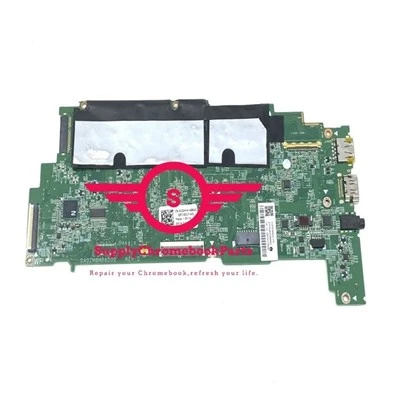
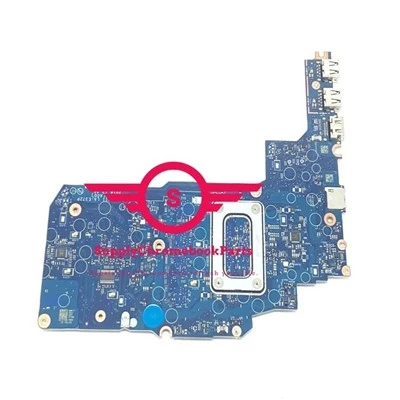
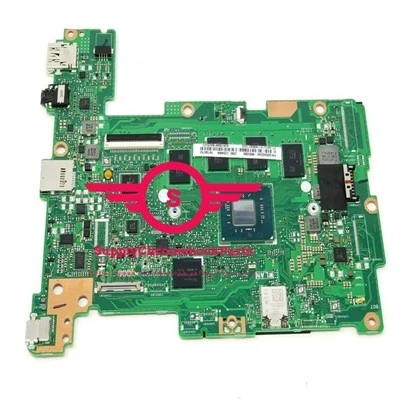
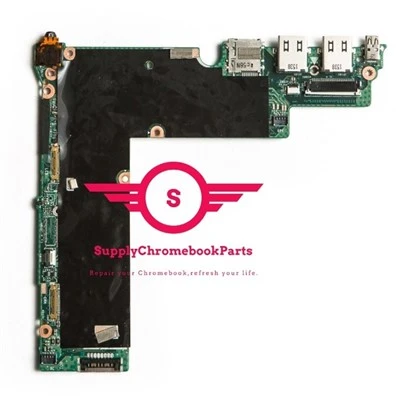
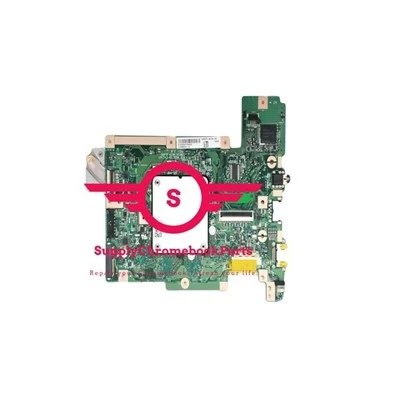
A Chromebook motherboard is the main circuit board that controls most other components in a laptop. It is responsible for communication between the central processing unit (CPU), memory, storage, ports, display, and other devices. A Chromebook motherboard is usually low in power consumption and cost, as Chromebooks are designed to run on Chrome OS, which is a lightweight operating system that relies heavily on internet connectivity. A Chromebook motherboard may vary in size, shape, and features depending on the model and manufacturer of the device. A damaged or faulty Chromebook motherboard can cause serious issues such as overheating, system crashes, or hardware malfunctions.
How Does a Motherboard Work?
The official motherboard definition is that it’s the main printed circuit board within a computer, which means it’s the primary piece of circuitry that all of the other pieces plug into to create a cohesive whole.
The motherboard is the backbone that ties the computer’s components together at one spot and allows them to talk to each other. Without it, none of the computer pieces, such as the CPU, GPU, or hard drive, could interact. Total motherboard functionality is necessary for a computer to work well. If your motherboard is on the fritz, expect some big problems.
Components of Chromebook Motherboard
Central Processing Unit (CPU)
The CPU is the brain of the laptop, executing instructions from the operating system and applications. It is usually located centrally on the motherboard and is protected by a heat sink and fan.
Memory (RAM)
RAM slots host the laptop’s memory sticks, which store data temporarily while the laptop is in use. RAM is crucial for multitasking and running demanding applications smoothly.
Storage Connectors
These connectors allow the attachment of storage devices like SSDs or HDDs to the motherboard, enabling the storage and retrieval of data on the laptop.
Power Connector
The power connector receives power from the laptop’s battery or AC adapter and distributes it to the various components on the motherboard.
Graphics Processing Unit (GPU)
Some laptops have an integrated GPU on the motherboard, which handles the rendering of images, videos, and graphics displayed on the screen.
Input/Output (I/O) Ports
I/O ports, such as USB, HDMI, and audio jacks, are soldered onto the motherboard, allowing the connection of external devices and peripherals.
Expansion Slots
These slots accommodate additional cards like Wi-Fi cards or other expansion modules to enhance the laptop’s functionality.
BIOS/UEFI Chip
This chip stores the BIOS/UEFI firmware, which is essential for booting the laptop and configuring hardware settings.
Audio Codec
The audio codec on the motherboard processes audio signals, enabling sound output through the laptop’s speakers or connected headphones.
Ethernet and Wireless Network Adapters
These components manage the laptop’s network connections, allowing it to communicate with other devices and access the internet.
Voltage Regulator Modules (VRM)
VRMs control the voltage supplied to the CPU and other components, ensuring they receive stable and adequate power.
System Controller Hub
This component integrates several motherboard functionalities, managing interactions between the CPU, memory, and other peripherals.
Functions of a Chromebook Motherboard
Manages Data Flow
Conserves Resources
Optimizes Power Distribution
Drives Communication
Enhances Performance
Improves Reliability
Enables Productivity
5 Tips for Regular Maintenance of Chromebook Motherboard
Remember to Clean the Motherboard
Dust often lands onto the motherboard through the air-vents. if allowed to settle, dust can damage the connections by picking up moisture from the environment and may even result in short circuits. Remember to open the CPU cases, once a month to dry clean the motherboard.
Keep a Check on Capacitors
Remember that the Motherboard is a large card of the CPU and has various parts attached to it. More often than not the capacitors hitched onto the motherboard show signs of swelling and can even leak. This increases the overall temperature of the unit making the PC unresponsive.
Keep Checking Your CMOS Battery
The battery (coin type) attached to the motherboard is essential for proper functioning. When the CMOS battery fails, the date and time fail to change and have to be manually done every time you switch on the PC. This hampers user experience and also sometimes makes it difficult to run particular web pages.
Keep a Check on the Fans that Cools the GPU and the Motherboard
Cooling of the motherboard and its units is essential and if not taken care can harm the entire PC. During operation the system can become very hot. Improper cooling will result in short circuits even if you live in the coldest parts of Hamilton. Keep a check and save your visit to get your motherboard repaired.
Use Eraser to Clean the Copper Connectors
After getting rid of all the static charge on your body (Just go and touch a metal object for 5 seconds) and detaching all the cards off the motherboard, it is time for you to clean the copper connectors with an eraser, lightly, which can be seen after the detachment is done. While taking off the parts remember to not use excessive force as it may cause in breaking and well, will only increase your expenses. So now you have the ultimate guide to taking care of the motherboard and ultimately your PC.
Chromebooks Versus Laptops: What's the Difference?
Operating System
Chromebooks: Chrome OS, popularly known as the Chrome web browser, is the operating system for Chromebooks. Chrome browser users will feel at home with Chromebooks since that is the primary user interface.
Laptops: Laptops can run on all kinds of operating systems, including Windows, macOS and Linux. This makes laptops compatible with a wider range of software and customization options.
Hardware
Chromebooks
CPU: Lower-cost Chromebooks commonly feature lower-performance chips such as Intel N-Series Celeron, Pentium processors, or AMD A4/A6 processors. Some mid-level to high-performance Chromebooks have MediaTek or Qualcomm Snapdragon CPUs. More powerful CPUs will keep your machine running smoothly when running multiple apps, browser tabs, or general multitasking. Some advanced Chromebooks utilize the same juggernaut CPUs as Windows and Mac machines, including the AMD Ryzen series and Intel Core series. Depending on the Chromebook you buy, they run a wide gamut on the spectrum of CPU power.
GPU: Chromebooks won’t cut it for advanced photo or video-editing, or any other desktop applications that are GPU-intensive. Chromebooks traditionally don’t have discrete GPUs, meaning they don’t have GPUs separate from their CPUs. Discrete GPUs consume more power and generate a fair amount of heat on top of being capable of running tasks like creative editing and AAA gaming titles. For now, if you need to run Adobe Creative Cloud or CAD programs, you would be best off with a macOS device or Windows PC with a discrete GPU. A higher-end Chromebook may be able to run limited PWAs of the big-name creative software but can’t run at the professional level (yet).
RAM: Chromebooks typically have 2-8GB of RAM, with most having 4GB. Generally, 4GB is suitable for basic computing tasks like web browsing, email, and YouTube-watching. If you’re wanting to multitask or run more demanding applications, 8GB RAM is what you’d want to aim for.
Laptops
Laptops tend to have higher-end hardware, including top-of-the-line CPUs, generous RAM typically starting at 8GB, and hardware storage. They are more suitable for multitasking, running creative software, and generally a much wider range of computing tasks.
Software and Applications
Chromebooks: Chromebooks are most effectively used with an internet connection; they rely on Chrome Web Store apps. This includes email, word processing, and online collaboration tools.Today, many apps offer a web-based alternatives with most of the features offered by their desktop counterparts. These apps include Microsoft Office, Spotify, Netflix, YouTube-even Photoshop and other Adobe offerings.
If you’re looking to purchase a Chromebook and need access to a particular app, you need to first make sure it’s offered as a web app with the features you need.
Chromebooks are not natively compatible with Mac/PC software, meaning you won’t be able to run either Mac or Windows software out of the box. There are a few ways to work around this, however:
VMware allows you to run virtualized versions of software on Chromebooks, so in theory, you could use Windows and macOS applications on a Chromebook.
Chrome Remote Desktop allows you to connect remotely to a Windows PC through your Chrome browser.
For a regular subscription fee, Google’s Parallels Desktop builds Windows and non-native app support into Chrome OS for select Chromebook devices.
Many of your favorite apps probably have a progressive web app or PWA version that has most of the capabilities as their desktop app equivalents.
Laptops: Laptops can run most modern software given that they’re up to spec. It’s not uncommon today to find laptops with the same processors, graphics cards, RAM, and storage as desktop PCs.
Storage and Cloud Integration
Chromebooks: Chromebook storage is typically minimal. They utilize cloud storage, namely that of Google Drive. Chromebook users can also store apps on SD cards or external hard drives if needed, just like Windows or Mac users can. Most Chromebooks don’t feature SSDs unlike Macs and PCs. They contain what’s called eMMC flash storage, which is commonly found in tablets and mobile devices. SSDs are becoming more common in newer Chromebooks, however. The Galaxy Chromebook for instance has a 256GB NVMe SSD, commonly found in newer laptops.
Laptops: In today’s market, just about every laptop has an SSD with 128GB of storage at minimum-basically the max you’ll find in a Chromebook. For supplementary storage, you can utilize cloud storage as well as external drives.
Offline Capability
Chromebooks: After 2017, Chrome OS started supporting Android apps, Linux apps, and offline document editing, making Chromebooks increasingly capable without an internet connection.
Laptops: Standard laptops can run full-featured apps without an internet connection and can also run web apps with no hiccups, given their CPUs and RAM are up to the task.
Security
Chromebooks: Chromebooks are automatically updated for protection against modern threats. Also, limited local storage prevents data loss due to device damage or theft. Each application and tab runs in its own environment to better contain malware. This concept is called sandboxing.
Laptops: Most laptop operating systems have built-in security measures, but they are susceptible to exploits if users don’t comply with system updates. While the customization of laptops allows for security improvements, misconfiguration can allow for more vulnerabilities.
Boot-up Time
Chromebooks: Chrome OS is a lightweight operating system which allows for fast bootup times of only a few seconds-you don’t need to wait long to connect to the web and get going on your next task. Chromebooks with SSDs vs eMMC drives will boot even faster.
Laptops: The exact boot-up time for a laptop will vary depending on the operating system, storage type and hardware configuration. A more complex OS, background processes, and HDD storage will result in slower booting. However, laptops can be optimized for rapid bootup. Generally, though, Chrome OS will boot faster than macOS, Linux, or Windows.
Multitasking
Chromebooks: Most Chromebooks don’t have the RAM or CPUs to run multiple applications at once. Screen sizes also tend to be on the smaller side, so multitasking capabilities are limited.
Laptops: You can run multiple web and desktop applications at once with ease on your laptop.
Gaming
Chromebooks: Chromebook gaming is cloud-centric. You can stream well over 1,000 AAA game titles on Cloud Gaming Chromebooks, which have better RAM and stronger CPUs than a typical Chromebook. Not all Chromebooks are cloud-gaming ready-Google has partnered with Lenovo, Acer, and ASUS specifically to create modern Chromebooks with 120Hz resolution displays which enable high FPS gameplay via NVIDIA GeForce NOW.
Laptops: Gaming is limited by your laptop’s specs and is not cloud-centric. Laptops more commonly have dedicated graphics cards and are much more capable of running modern, high demand games. Also, the resolution, refresh rates, and displays tend to be much better, and there are laptop manufacturers that specifically create laptops for gaming.
Customization and Personalization
Chromebooks: The simplified interface doesn’t allow for as much hardware/software customization or personalization of the UI as other operating systems. Using a Chromebook is akin to using a tablet or smartphone than a laptop in this respect.
Laptops: Laptop hardware is highly configurable, with various processors, RAM sizes, storage, and graphics options. You can even upgrade the RAM and storage in some laptops, which is not the case with Chromebooks.
Longevity and Updates
Chromebooks: As previously stated, Chromebooks receive automatic security and other OS updates. However, after about five years or so, older Chromebooks lose their ability to receive updates. This ultimately limits their lifespan.
Laptops: Unlike Chromebooks, laptops do not update automatically. However, regular laptops have a longer lifespan, provided they are actively updated and maintained.
Learning Curve
Chromebooks: Chromebooks are made to be easy-to-use, with straightforward UI and stripped-down features. For users familiar with web apps and browsing, they’ll feel right at home with a Chromebook. This is a major reason why they’re used in K-12 schools—they require less technical knowledge to operate and maintain than your average laptop.
Laptops: Given the customizable software and variety of operating systems available, laptops have a steeper learning curve. Laptops may be more suitable for older students, students who are more familiar with Windows or macOS, or students taking graphic design or AutoCAD classes.
Compatibility with External Devices
Chromebooks: Since Chromebooks are cloud-first devices, their capabilities are limited when it comes to connecting to external devices. They don’t have the same software and driver support that is commonplace with laptops.
Laptops: Most laptops can easily connect to printers, scanners, portable hard drives, and other devices via software or USB ports. Drivers and software are readily available online in the case of software compatibility issues.
Factory Workshop
Our team of experts is always ready to assist you with any questions or concerns you may have.


Frequently Asked Questions
Q: Do Chromebooks need an internet connection?
Q: What Is a Motherboard?
Since different kinds of processors and memories are intended to function best with certain types of motherboards, it is difficult to find a motherboard that is compatible with every type of CPU and memory. Hard drives, on the other hand, are generally compatible with a wide variety of motherboards and may be used with most brands and types.
A computer motherboard may be found inside a computer casing, which is the point of connection for most of the computer’s elements and peripherals. When it comes to tower computers, one may look for a motherboard on either the right or left side of the tower; the circuit board is the most significant.
Q: How can I tell if my motherboard is dead?
●Peripherals that fail or take a long time to start up.
●Computer powering off unexpectedly.
●Computer not turning on at all.
●Burning or chemical smell coming from your computer.
These behaviors can be symptomatic of other, more common PC problems, too. It's best to troubleshoot each solution one-by-one before assuming it is your motherboard. Even if you think you've ruled everything out, which can be a lengthy process, you should see if your motherboard BIOS may be an issue. Flashing the BIOS could solve the problem and save you the expensive replacement ahead.
Q: What is the motherboard of a Chromebook?
Q: How do I reset my Chromebook motherboard?
Press and hold the [Refresh button], then click the [Power button] to power on.
Release the [Refresh button] until the Chromebook restarts.
Q: What is Chromebook hardware?
Q: What is the motherboard of a laptop?
Q: Why is a Chromebook not a PC?
Q: Why is my Chromebook not turning on?
Q: How do I free up RAM on my Chromebook?
●Turn off the android and linux containers if you don't use them.
●Reboot at least once per week.
●Remove chrome extensions you no longer use (they take up ram whether being used or not).
●Reduce # of open tabs, especially resource intensive ones (yt, news sites with background vids...).
Q: Is it OK to replace laptop motherboard?
Q: Are Chromebooks just laptops?
Q: Is a Chromebook basically a laptop?
Q: Can I use a Chromebook as a computer?
Q: How do I force my Chromebook to hard reboot?
Q: How do I maintain my laptop motherboard?
Q: Is it worth replacing the motherboard?
Q: Can you just replace the motherboard?
Q: How long does a motherboard last?
Q: What happens if the motherboard is replaced?
We're well-known as one of the leading board suppliers in China. Please feel free to wholesale bulk cheap board in stock here and get free sample from our factory. Good service and low price are available.
for Acer Chromebook Spin 13 Cp713 2w Touch Screen, For Lenovo 300e Chromebook 2nd Gen MTK Lcd Touchscreen Assembly, Chromebook LCD Touchscreen