

Chromebook Charger&Adapter
Your Leading Chromebook Charger & Adapter Supplier in China!
We mainly focus on producing full series of Chromebook parts, such as such as LCD display, LCD digitizer assembly, bezels, base covers, keyboards & palmrests, batteries, adapters and so on. If you don’t get what you need on our website, don’t hesitate to contact us and our production team will get it for you in 24h.
Quality Oriented
We have stringent quality control standards and have the capability to test most of the screens that we sell in addition to vendor testing of the screens we receive.
Advanced Equipment
We have 15 production lines with world advanced level and have introduced advanced technical equipment such as laminating machines, separators, and defoaming machines.
Repair Guides
We offer thousands of free repair guides for thousands of different devices. They combine high-resolution photos with detailed, step-by-step instructions, and they’re vetted by our team of experts.
Professional Service
With professional purchasing team, QC team, logistic team, production team, sales team, after-sales team and technology team, we are confident that we can conduct long-term business cooperation with you and jointly develop the global repair market.


A Chromebook charger refers to the power adapter or charger that is used to charge a Chromebook laptop. Chromebooks typically come with a specific type of charger that is designed to provide the necessary power and voltage requirements for the device. The charger usually consists of two parts: the power brick and the charging cable. The power brick converts the electrical current from an AC outlet to the appropriate voltage and amperage required by the Chromebook. The charging cable connects the power brick to the Chromebook, allowing it to charge the laptop's battery. It's important to use the correct charger specifically designed for your Chromebook model to ensure safe and efficient charging.
Charging Speed
USB-C chargers offer significantly faster charging speeds than other types of chargers. With up to 100W of power transfer support, you can quickly charge up your Chromebook in no time.
Compatibility
With USB-C being the industry standard, you can easily find compatible chargers and cables almost anywhere you go. You don't have to worry about lugging around bulky chargers or finding specific ports to charge your device.
Increased Efficiency
USB-C charging is more efficient than traditional charging methods, reducing the amount of energy loss and saving you money on your energy bill in the long run.
Power and Data Transfer
As mentioned earlier, USB-C is capable of handling both power and data transfer at high speeds, making it the best choice for users who frequently transfer large files and need to charge up their devices quickly.
Reversible Design
The reversible design of USB-C means you don't have to worry about fumbling around with your charger to get it plugged in correctly. You can simply plug it in and go.
Best Replacement Chromebook Chargers
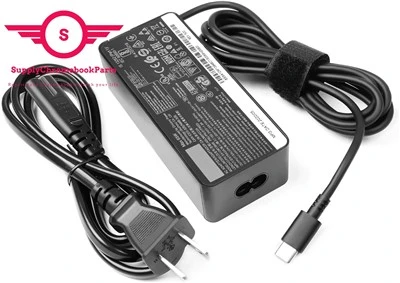
Acer Chromebook Charger
HP Chromebook Charger
Samsung Chromebook Charger
Dell Chromebook Charger
USB-C Chromebook Chargers
Pwr Plus USB-C Charger
Nekteck USB-C Charger
How to Find Right Chromebook Laptop Charger
Charger Part Number
One of the easiest ways to find the right charger for your laptop is by examining the label on your current charger. The part number is typically listed as "P/N" or "Spare" or "FRU" on the label. Once you have part number you can use our search box at the top of the page to buy charger. By identifying the correct part number on the charger label, you can ensure that you purchase the correct replacement charger for your laptop. This can help you avoid compatibility issues and ensure that your device charges correctly.
Charger Connector (Pin) Type and Watt
Another method is to determine the charger pin type and wattage, you can physically examine the pin type and refer to the charger label to identify the wattage. If you are already aware of the pin size and wattage details of your current charger, you can use our laptop charger page to filter the options and select the appropriate charger.
HP Charger pins: 7.4mm, 4.5mm, and USB-C.
Lenovo Charger pins: Round Tip, Slim Tip, Car Charger, and USB-C.
Dell Charger pins: 7.4mm, 4.5mm, and USB-C.
NOTE: The wattage of the charger determines the rate at which it can charge the laptop's battery. It is crucial to choose the correct wattage to avoid damaging the battery or causing it to overheat.
Laptop's Serial / Model Number
If you can't locate your old charger or have lost it, don't worry, there are still ways to find the right replacement. One option is to look for your laptop's serial / model number, which is typically listed on the back of the device.
Alternatively, you can use the command prompt to find the serial / model number. Simply type 'cmd' into the Windows search bar, then enter 'wmic bios get serialnumber' in the command prompt. This will bring up the model number, which you can then use to search for the right replacement charger.
Once you have the serial / model number, you can use our serial look-up page to purchase a new charger. This page allows you to search for the correct charger based on your laptop's serial / model number, ensuring compatibility with your device.
How to Charge a Chromebook without the Original Charger
Charge Your Chromebook with a Power Bank
If your Chromebook is incompatible with an additional power source, another way to charge it is by using a power bank. Again, it would help if you have a USB Type-C cable; all you have to do is connect your Chromebook to your power bank. Although it is a simple and practical way to charge your device, it’s important to note that this is a low-power method of charging, which means it will take a lot of time to charge your Chromebook fully. Nevertheless, it can be helpful when you don’t have any other options for charging your device, and you need to use it.
Charge Your Chromebook with Your Smartphone
Yes, your smartphone can be another power source you can use to charge your Chromebook. However, your phone must support two-way power delivery, while your Chromebook must have a USB Type-C port. After you connect them with a USB Type-C cable, a notification will appear on your phone, and you need to choose the option to supply power to the connected device - your Chromebook. Still, bear in mind that your phone has a much smaller battery capacity than your Chromebook, so you should not expect to charge your Chromebook fully this way. Of course, this is not an ideal solution, but it might come in handy in some situations.
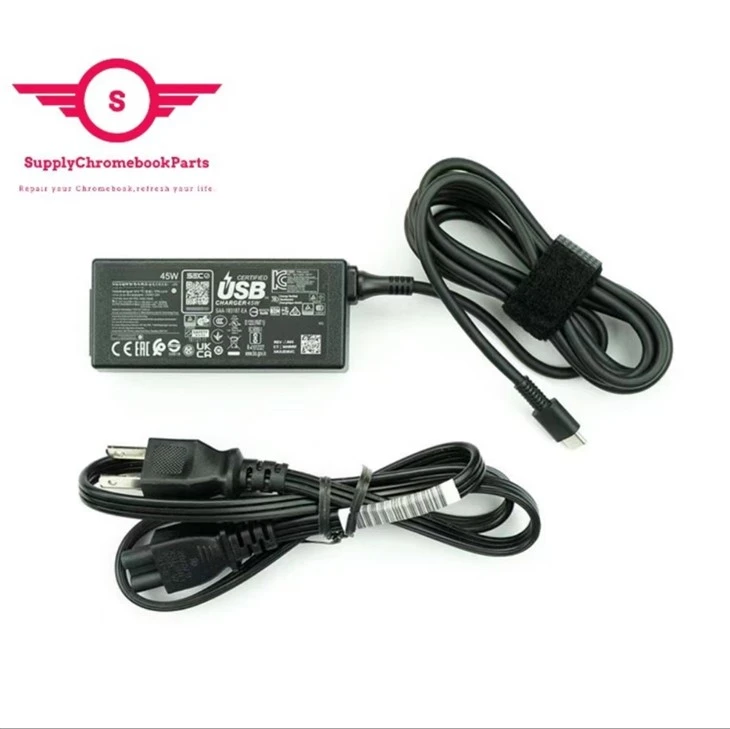

Charge Your Chromebook in Your Car
Some Chromebooks have an AC/DC car charger, which you can use to charge your device. All you have to do is plug it into your car’s charging ports and your Chromebook’s charging port, and your device will start charging. Of course, you’ll have to keep the vehicle running while you’re doing this. Another way to charge your Chromebook in your car is by using a Type-C car charger. To do this, plug the Type-C car charger directly into your car’s charging ports. Charging your Chromebook in your vehicle can effectively keep your device powered up while on the go.
Charge Your Chromebook with a Universal Charger
If you have a universal charger, you can also use it to charge your Chromebook when you don’t have its original charger. Universal chargers are designed to be compatible with various devices, including Chromebooks. To charge your Chromebook with a universal charger, plug it into a power outlet and your Chromebook. Although you can use your Chromebook as usual while it is charging, your device will probably be charging much slower than using your Chromebook’s original charger.
How to Charge Your Chromebook and Get the Best Battery Life
Charge the Battery
Note: Make sure to fully charge the battery before using the Chromebook for the first time.
When your Chromebook needs a charge, just plug in the included charging cable. Remember, you can use the Chromebook while it's charging, but this may increase the charging time. Also, make sure you are using the proper charging cable to prevent damage.
Connect the power cable to the charging port on the side of the Chromebook. If your Chromebook has a USB-C charger, you can use any USB-C port.
Connect the AC adapter to a power outlet.
When the battery is fully charged, the power LED will turn green. Disconnect the power cable from the Chromebook.
Check the Battery Status with Power LED
If you aren't sure if your Chromebook is fully charged, just look at the Power LED which shows the device's battery status.
Red: The battery is charging.
Green: The battery is fully charged.
Blue: The Chromebook is powered on.
You can also check the battery life in the status bar on screen, along with the estimated time it will take until it's fully charged.
Extend Your Chromebook's Battery Life
Even with an amazing battery, your Chromebook’s battery life will vary based on your usage. For example, it will drain faster if you’re always playing games or watching movies compared to if you are casually looking up something on the internet.
Here are some general tips for prolonging the battery, no matter what you’re doing:
Close unused programs or apps.
Lower the display’s brightness when possible.
Regularly update your Chromebook’s software.
Make sure to remove or unpair connected devices that you are not using.
Use the Chromebook’s Night mode which adjusts the screen’s brightness based on the time of day.
Lock the Chrome OS or close the lid when you’re not using your Chromebook. This allows the Chrome OS to go into Sleep mode and conserve battery.
Chromebook Charger Troubleshooting Guide
Checking the Battery Level
First, ensure that your Chromebook’s battery isn’t the issue. Connect your Chromebook to the charger and wait at least 15 minutes. Then, check if the charging indicator light is on, signaling that the device is charging.
Resetting the Battery
Some Acer Chromebooks come with a pinhole reset button. You can use this to reset the battery if your device isn’t charging properly.
Power Cycling Your Chromebook Power cycling can resolve many temporary glitches. Turn off your device and unplug the charger, then wait a few minutes before turning it back on and plugging in the charger.
Other Troubleshooting Steps
Charging in Recovery Mode: If your Chromebook’s battery isn’t charging beyond a certain point, try charging it in Recovery Mode. This involves turning off your Chromebook and booting it up in a special recovery state.
Trying a Different Charger: If the issue persists, try using a different charger that is compatible with your Chromebook model. This can help determine if the problem is with the charger itself.
Inspecting the Charger and Port: Visually inspect the charger and charging port for any signs of damage or debris that might be causing a poor connection. Gently clean the charging port if necessary.
Checking for Software Issues: Sometimes, software issues can interfere with charging. Make sure your Chromebook is updated to the latest version of its operating system.
Seeking Professional Help
If none of the above solutions work, it might be time to consult with a professional. Reach out to a certified technician for assistance.
Factory Workshop
Our team of experts is always ready to assist you with any questions or concerns you may have.


Frequently Asked Questions
Q: What charger does my Chromebook use?
Q: What can I use if I don't have a Chromebook charger?
Q: Is it OK to charge Chromebook with phone charger?
Q: How to charge Chromebook?
Q: What is Type-C charger?
Q: Can I use laptop charger for Chromebook?
Q: What does a USB-C port look like?
Q: How to charge laptop without charger?
Use a power bank or portable power station.
Connect the laptop to a universal power adapter to charge.
Charge your laptop from the car with USB cables.
Charge your laptop with HDMI cables (only if your laptop has an HDMI-IN port).
Q: Do Chromebooks have a USB port?
Q: What is the difference between Type-C charger and USB charger?
Q: What is a Type C port on Chromebook?
Q: Why is my Chromebook not charging?
Q: Are all USB-C chargers the same?
Q: Is a USB-C port the same as a USB port?
Q: What can I use if I don't have a Chromebook charger?
Q: What can you use instead of a Chromebook charger?
Q: Can you charge laptop through USB port?
Q: Can I charge my laptop through the USB-C port?
Can I charge my phone through my Chromebook?
To charge an external device from a Chromebook USB port, plug a cable with a USB adapter into either the USB 2.0 port provided on the right side of the Chromebook or the USB 3.0 port located on the left.
Q: What color is the light of a fully charged Chromebook?
We're well-known as one of the leading adapter suppliers in China. Please feel free to wholesale bulk cheap adapter in stock here and get free sample from our factory. Good service and low price are available.
5D11C95914, Chromebook Battery, For Acer Chromebook Spin R722T K95L Touchscreen