

Chromebook Battery
Your Leading Chromebook Battery Supplier in China!
We mainly focus on producing full series of Chromebook parts, such as such as LCD display, LCD digitizer assembly, bezels, base covers, keyboards & palmrests, batteries, adapters and so on. If you don’t get what you need on our website, don’t hesitate to contact us and our production team will get it for you in 24h.
Quality Oriented
We have stringent quality control standards and have the capability to test most of the screens that we sell in addition to vendor testing of the screens we receive.
Advanced Equipment
We have 15 production lines with world advanced level and have introduced advanced technical equipment such as laminating machines, separators, and defoaming machines.
Repair Guides
We offer thousands of free repair guides for thousands of different devices. They combine high-resolution photos with detailed, step-by-step instructions, and they’re vetted by our team of experts.
Professional Service
With professional purchasing team, QC team, logistic team, production team, sales team, after-sales team and technology team, we are confident that we can conduct long-term business cooperation with you and jointly develop the global repair market.


Chromebook Battery is a term that refers to the power source of a Chromebook, which is a type of laptop that runs on Google's Chrome OS operating system. Chromebook Battery can vary in capacity, performance and lifespan depending on the model and usage of the device. Generally, Chromebook Battery is designed to last for several hours of continuous use, and can be recharged using a compatible AC adapter. Chromebook Battery can also support fast charging and power delivery features that allow the device to charge quickly and share power with other devices.
Adjust Brightness
Your screen is one the greatest demands your battery sees, sucking its life quickly. Adjust the brightness to the lowest level that is comfortable for your eyes. This will save your battery life in spades.
Turn Off Connections When Not in Use
Connections also suck battery life because they are constantly searching for signals and beacons. This draws on your battery, so turn off unnecessary connections, like Bluetooth or 3G/4G, when you aren’t using them. If you’re in a serious battery jam, you can also turn off Wi-Fi to save juice. Chromebooks still function offline-you can check your email, edit documents or spreadsheets, and more. When you reconnect to Wi-Fi, your services will automatically sync.
Unplug Peripherals
Using a mouse? Or a microphone? Any peripherals plugged into your Chromebook are using power, which drains your battery over time. Unplugging your mouse, or other USB-powered accessories, when not in use will maximize battery life.
Shoot for 20-80% Charge
While it may seem counterintuitive, riding at 100% battery 100% of the time is not always a good thing. Lithium-ion batteries are most stable between 20-80%. When a battery runs above 80% charge, the usage changes to protect the battery from expansion and other physical damage. Battery life is rated in cycles, i.e. how many times your battery can survive being charged from 0-100%. If you consistently keep your charge between 20-80%, you’re essentially doubling the amount of charging cycles a battery uses in its lifetime. Letting your battery drain to 0% will damage it every single time. Likewise, never store a Chromebook at 0%. At 0%, your battery is still not fully discharged-it just doesn’t have enough juice to power the device. But, if you store your Chromebook at 0%, any remaining power will discharge completely and can cause irreparable damage to your battery. We understand that keeping your battery between 20-80% takes impressive, and possibly obsessive, monitoring. Biggest takeaway: don’t let your charge hit 0% and take it off the charger occasionally to actually use the battery.
Plug It In for Updates
While Chrome OS updates run in the background, make sure your Chromebook is plugged in when other updates are performed. This will save your battery life and CPU resources.
Close Unnecessary Web Pages or Applications
Web pages and apps refresh frequently to provide the most updated information. The more tabs and apps you have open at one time, the more CPU and RAM needed, which puts a greater demand on your battery. Close unneeded tabs or apps to save battery life.
Pro Tip: Check which web pages and apps use the most battery. This can be accessed under Settings > Battery.
Check Your Task Manager
We give this last tip with a generous helping of caution. There are certain apps that constantly run in the background like Google Drive, Gmail Offline, and Hangouts (among others). Fire up your Task Manager to see which apps are running in the background. You can then decide to disable any app or service you don’t need. Be careful, though. Disabling certain services can disrupt functionality. If you don’t know what the app or service is, don’t disable it until you do.
Advantages Of Using a Chromebook
Chromebooks are Cheaper
The Chrome OS is Very Stable and Fast
Chromebooks Have a Longer Battery Life
Chromebooks aren’t as Prone to Viruses
Many Chromebooks are Lightweight and Compact
Factors That Can Affect Chromebook Service Life
Aside from a Chromebook’s AUE date that determines the longest potential lifespan of the device, there are a few other factors that can affect the Chromebook service life:
Unnecessary Apps
Having too many unnecessary apps can overload the system. Such programs can run in the background where they:
●Eat up system resources.
●Waste precious local storage space.
●Bog down your machine.
Unnecessary Extensions
Unneeded extensions can slow down the loading of web pages, especially extensions associated with the browser itself.
Battery Life
The more you charge it, the shorter the time it lasts. In some cases, you may be able to purchase a new battery. But, depending on your machine’s age, batteries for your model may no longer be available. Some reasons your battery may be draining faster than usual include:
Peripherals
Peripherals can reduce a Chromebook’s battery life by up to 30 minutes.
Bluetooth and Wi-Fi
Wireless connections can eat up a lot of battery power so disable them when not in use.
Brightness Settings
Your display can take up the most battery power on your Chromebook.
High-intensity Tasks
Running too many high-intensity tasks simultaneously can drain a lot of CPU power.
Not Powering Down
Keeping your Chromebook on all the time when not in use doesn’t allow your hard drive time to power down.
How To Care For Your Chromebook Battery?
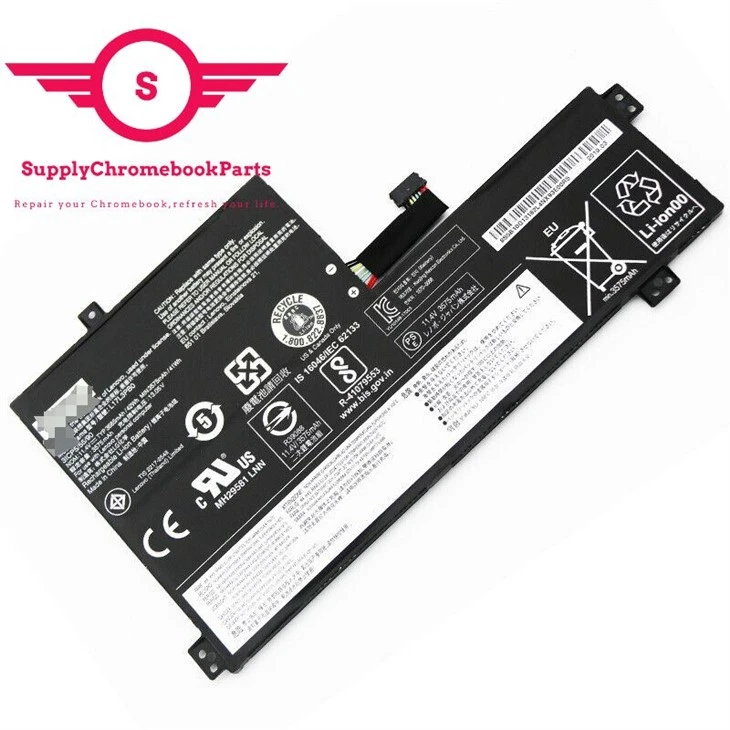
Don't Let Your Chromebook Run Hot
It’s crucial to make sure that your Chromebook battery doesn't overheat, which means you have to be conscious about how you use the laptop itself. For example, don’t run too many high-intensity processing tasks on your Chromebook at once, because this will overwork the CPU and, in turn, can cause the battery to overheat.
You Also Want to Keep Your Chromebook in the Proper Weather Conditions to Avoid Overheating.
If you can, store it in a cool area.
Never leave it running in direct sunlight, particularly during the hot summer months.
Keep it away from heating vents so you’re not accidentally getting it toasty during winter months.
Avoid Using Faulty Outlets
While out in public, you may be tempted to plug your Chromebook into outlets in a shared space. While this makes sense if you're in a coworking space or coffee shop, you want to make sure the outlet is working properly. We know that you can’t exactly test a public outlet with a voltage tester, but you can mitigate the risk. How? Just make sure your Chromebook power adapter is in good condition, that it fits correctly, and that it matches the outlet’s plug type. If it’s damaged, don't use it in a public outlet. And make sure to avoid third-party chargers altogether.
Use a Surge Protector
Consider using a power strip with a surge protector when plugging in your Chromebook, no matter where you are. This will help you avoid any power-shortage issues, and it will increase your charging efficiency, lengthening the battery’s life. It’s not as easy to use a power strip with a surge protector when you’re in a public space. However, you could travel with a small, portable surge protector if you’re concerned about faulty outlets or sudden power surges.
Properly Ventilate Your Chromebook
You can manually ventilate your device by connecting a USB cooling fan. This will help keep temperatures at a reasonable level and make sure that the Chromebook battery doesn't overheat. You could also elevate the device by using a compatible laptop stand.
Try to Keep Battery Life Between 40% and 80% at All Times
Just like its other components, Chromebook batteries need their rest. If you continually let your Chromebook run out of juice and then charge it up to 100%, you’ll shorten the battery’s life by making it go through a full cycle each time. Instead, keep the battery between 40% and 80%, which gives it enough charge on a regular basis without overstressing it.
Adjust Brightness and Bluetooth Settings
The more you cycle through charges of your Chromebook, the more you will degrade its battery. Minimize your battery usage by reducing or turning off features and settings you don’t actually need. One example is lowering the brightness setting on the display to better match your environment. Also, turn off Bluetooth whenever you’re not using it.
Use a Smart Plug to Automatically Adjust Charging Mechanisms
Smart plugs may superficially resemble power strips, but they have many capabilities, including helping your Chromebook's battery. Unlike a traditional power strip, you can actually program a smart plug. For example, if you don't want your Chromebook battery to charge beyond 80%, you can program your smart plug to stop charging it after a certain amount of time. This can help to maximize the battery’s potential without needlessly degrading it.
Regularly Monitor Your Battery Health
It is an inevitable fact of life that all batteries eventually degrade, and Chromebook batteries are no exception. However, you want to keep a continuous eye on its health in order to best plan for how you’ll care for it. You know you can check on your Chromebook battery using Crosh, but it’s important to do so regularly. Knowing the battery’s power capacity can also help you to best strategize on how to get the most use of it without exposing it to more decay than necessary.
Use New Chromebook Power-Saving Options
One of the best things about Chromebooks is how easy it is to use Chrome OS. No surprise, then, that Chromebook OS features power-saving options to help extend battery life. To access these features:
●Click into the 'power' tab in the Settings menu.
●In this menu, specify whether you want the Chromebook to go to sleep or stay awake both when you leave it idle and when you close the lid.
These additional power-saving options allow users to control their Chromebook’s behavior when the device is in sleep mode or when the lid is closed. While you won't be able to directly specify a time limit on idling – the default is six minutes – you can specify whether you want your Chromebook to keep the display on, turn off the display and stay awake, or turn off the display and sleep. To save the most power for your Chromebook battery, you should choose the turn off the display and sleep option.
Close Your Chrome Tabs When You're Done Using Them
One of the biggest drains on the Chromebook battery is the use of Google Chrome itself. The web browser can use quite a bit of your computer’s resources for several reasons, including extensions you use and the number of open tabs. (Studies show you will open an average of 40 tabs per hour. Don’t believe us? Just check your history.) While Google took steps to improve Chrome’s performance, you can also take your own steps to lessen the browser’s impact. For one, you can suspend tabs you’re not currently using through a third-party Chrome extension. More open tabs use more resources, which requires more battery power to maintain, so suspending them helps to better preserve your Chromebook battery.
Factory Workshop
Our team of experts is always ready to assist you with any questions or concerns you may have.


Frequently Asked Questions
Q: When should you charge your Chromebook?
Q: How to check the health of your battery?
Q: Where to store your Chromebook and where you shouldn’t?
Q: Can Chromebook batteries be replaced?
Q: What is the battery life of a Chromebook?
Q: Can Chromebook batteries be replaced?
Q: How do I know if my Chromebook battery is bad?
Q: What uses up battery on Chromebook?
Q: Do Chromebook batteries go bad?
Q: When should I replace my Chromebook battery?
Q: Does overcharging a Chromebook battery damage it?
Q: Can I leave my Chromebook plugged in all the time?
Q: How do you test the battery on a Chromebook?
Q: Why is my Chromebook plugged in but not charging?
Q: What happens if I leave my Chromebook charging overnight?
Q: Can you leave a Chromebook on overnight?
Q: How long can you use a Chromebook after its end of life?
Q: How long does a Chromebook last on average?
Q: Can I charge my Chromebook with a power bank?
Q: What does the orange light on Chromebook mean?
Q: How long does a full battery last on a Chromebook?
Q: Does a Chromebook have an internal battery?
Q: Does a Chromebook have a lithium battery?
Q: What materials are Chromebooks made of?
We're well-known as one of the leading chromebook battery suppliers in China. Please feel free to wholesale bulk cheap chromebook battery in stock here and get free sample from our factory. Good service and low price are available.
For Acer Chromebook CB315 4HT Series LCD Display Panel, KT 00407 008, 5D11C95886